Search This Blog

Friday, December 30, 2011

VMWare View 5.0: Teradici Zero Clients experience rapid "black/white screen" at login

Overview

Recently, I have observed an annoying issue with Teradici Zero Clients (Wyse and Samsung) while users are logging into the device. After authentication, the virtual desktop display starts rapid "black/white screen" on the display while waiting to finalize login. I tracked the problem down to the windows 7 PCoIP video driver trying to adjust to the resolution of the monitor attached to the Zero Client. Although this does not impact the overall connection most customers just live with the "screen blinking", personally I don't like it! The Windows, Mac and Smartphone clients work just fine, but with the resolution changes recommended the connections seem to be much quicker at startup.

So, through much testing with zero clients, thin clients, ThinLaunch (which rocks BTW) and end user connection validations to VMWare View environments, I believe I found a easy work around for this issue.

Resolution

The issue is with the base image configuration for VMWare View deployments. By Default, a virtual machine in vSphere 5.0 is not set to "Auto Detect" video settings. Secondly, the default screen resolution is commonly changed on the base image for console access from 800x600 to something larger for better console display. The base image is used as the golden image so all desktops inherit VM settings. In certain situations with Thin and Zero clients, the embedded agent does not react well with display changes from default settings and the view agent needs to utilize the Auto Detect VM settings rather than adjusted settings.

Note: 3D Rendering with VMWare View is still on my Radar Screen and so far, working AWESOME!!!!! However, I need to validate infrastructure impact to reference architectures.

So, in conjunction to the standard base image customization, please perform the following additional adjustments:

1) Set the default base image to Auto Detect on the Video Settings when the VM is powered off:


2) Set the default resolution on the base image to 800x600:
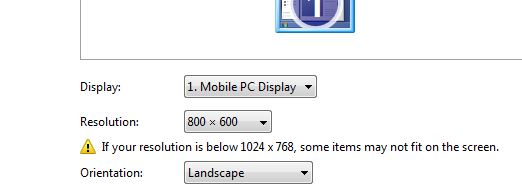


After these settings are performed the image resolution and login to the Zero Clients from Teradici will perform much better without the blinking screen.

Please feel free to comment.

Enjoy!!!

Thursday, December 29, 2011

VMWare View 5.0: Port Information for Internal and External access

Overview

In recent deployments and upgrades of VMWare View 5.0, customers are really starting to realize the concept of the "Follow Me Desktop". When the VMWare View environment is setup correctly for end user access,  a single access URL can be easily setup to provide seamless access to VDI environments using BYODs (Bring Your Own Devices) for internal and external access (and just a "cool" solution to provide end user access to perform critical business activities in a secured manner anytie/anywhat/anydevice).

This blog focuses on the internal networking requirements to provide seamless external and internal access to VMWare View environments.

Solution

To provide seamless access via single URL access, please understand that from the URL provided to end users, Windows and Mac users, can download the installation software by just pointing their browser to the URL (smart devices are done via "market"). Now, for the IT Department, there is some effort required to make sure everything gets setup correctly. Below are the steps and diagrams to utilize for this configuration:

1) Determine load balancing setup. Some customers cannot invest the monies into a F5 or Cisco load balances, so DNS round robin can do the trick, by assigning a multiple IP addresses internally and externally to the same DNS name. I will not go into the hardware solution setup at this point.

2) Understand the port requirements and DMZ setup (diagrams below) end to end. EVERYONE MISSES PORT 4172 TCP AND UDP BOTH DIRECTS ON THE EXTERNAL and INTERNAL FIREWALLS!!!!!


3) Don't be afraid to NAT the Security Server internal IP Address from the External access IP. I usually setup a separate vSwitch for DMZ Access in this environment for my Security servers, setup layer 2 security and drop another vNic into production for "backend firewall to desktops". If you have a good network intrusion protection scheme, which you should at this point, use it!!  Please refer to the documentation at http://www.vmware.com/support/pubs/view_pubs.html for View Brokler setup and configurations.

4) Two (2) factor authentication and tags are supported to block users from external access. Again refer to admin documents on the setup, but it works great.

5) Use any device access for clients, test on wired/wireless networks and DOCUMENT. I am really impressed with Teradici Management Software to provide seamless provisioning and access to thin clients (Vonage VDI...This is a whole 'nother level for a blog), ThinLaunch software to re-purpose devices and smart device support for VMware View clients.

6) Did I mention DOCUMENTATION!!!! Document the "how to guide" for end users to ease the operations support. One of the main selling points of this technology is the ease of operations, support, rapid deployment, updates and ease of access.

That's it...Happy New Year and 100,000 desktops in 2012!!!!!

Dave

VMWare View 5.0 Composer Error while adding QuickPrep Users: "Error while adding the administrator. Please re-check your information"

Overview

During a couple of recent VMWare View 5.0 (will occur in 4.x as well) I came across an error when adding a "Quickprep" user to the Composer accounts through view manager: "Error while adding the administrator. Please re-check your information". I found very limited information concerning this error and validated the resolution from the VMWare KB article kb.vmware.com/kb/1035626.


Note: The connection server log is really not that informative as well, but I do suggest anyone that is involved in VMWare View deployments get familiar with generating vmware view log bundles for support from the View Brokers:

View Connection Manager->Start->VMWare->Generate View Connection Server Log....

Log Information from this error:

Error while adding the administrator. Please re-check your information com.vmware.vdi.admin.ui.common.ViewFlexFactory$ViewProxy.invoke(SourceFile:87)
com.vmware.vdi.admin.ui.common.FlexRemoteException: Error while adding the administrator. Please re-check your information
at com.vmware.vdi.admin.ui.bean.VCServerBean.addAdmin(SourceFile:500)
at sun.reflect.NativeMethodAccessorImpl.invoke0(Native Method)
at sun.reflect.NativeMethodAccessorImpl.invoke(NativeMethodAccessorImpl.java:39)
at sun.reflect.DelegatingMethodAccessorImpl.invoke(DelegatingMethodAccessorImpl.java:25)
at java.lang.reflect.Method.invoke(Method.java:597)


Resolution

What I did realize is that the issue was mainly with the DNS resolution within the environment and with the latest Virtualization Migration, a couple of Domain Controllers were converted and dcpromo'ed out. When I ping'd and nslookup'd the domain, I noticed a couple of IP addresses of DC's that no longer exist. If anyone has not realized yet, on any VMWare View deployments, a solid windows Domain infrastructure is most important and mis-configurations that may "fly" in a non-virtualized desktop environments will not work well in VMWare View, Citrix Xen, etc...

The main problem is that the Virtual Center Composer and View Manager could resolve users and adding vCenter Servers, however the View composer component requires the user to be fully authenticated across each domain set and if there is a single DNS resolution failure of authentication controllers for the QuickPrep user, the user for QuickPrep will not be added with error noted in this post. The KB Article in this post from VMWare covers most of the issues that can cause this error as well, so please refer to that as well since.

I found the old domain controllers entries in the "Domain Controllers" OU's and Sites/Locations, then:

1) Removed the non-existent DC controllers entries manually.
2) Cleaned up DNS entrires all around.
3) Then re-synced the Domain
4) Went ahead restart the View Manager's and vCenter server with View Composer service (could have probably flushed, but went with clean restart)
5) Then added the Domain Administrator account to View Manager composer QuickPrep user

Done!!!

Again, the bottom line is to ensure proper domain administration and Virtualization in general is a great opportunity to "right" the "wrongs" of the past.

Hope this information was useful and please feel free to comment.

Dave

Thursday, December 22, 2011

Desktop Virtualization - Windows 7 IOPs and Impacts on VDI Deployments

Overview

I recently came across an excellent resource describing Windows 7 IOPs and performance impacts on Desktop Virtualization environments. There are excellent points made around the importance of preparing the Windows operating systems for VDI, allocating storage capacity based upon upfront analysis, validating your expectations prior to production and the importance of determine the VDI environment user roles.

Understanding and getting a grasp on your VDI IOPs is one of the most important attributes for a success VDI Deployment.

Successful desktop deployments involve doing your homework, understand the technology and research "lessons learned" from others that have deployed. You can't believe everything you read, so you will have to dig through the marketing hype to get to the valued information.

One item I would like to point out is the use of tools to validate your VDI deployments. Storage is about 40% of the overall cost of any VDI deployment, so if you have the ability to prove out your IOPs on a small scale system before large scale deployments with your expected user profile usage, that is ideal. Personally I like using IOMeter to generate "simulated" user I/O since this tool has the ability to custom generate scripts. If you have a knack for scripting, couple with this "Autologon" and login scripts and you can deploy 100's of VDI desktops through your provsiioning manager (View Manager, PVS, DDC, etc..) to burn-in your environment prior to production that will launch IOMeter scipts. I also recommend AutoIT VBScript builder as well to simulate launching and type withing applications.

Below are a few links that provide details on IOPs and VDI solutions from "real world" implementations:

Windows 7 IOPS:

“Windows 7 IOPS for VDI: Deep Dive”

Virtualization blogs (just a few):

http://myvirtualcloud.net/
http://blogs.vmware.com/view/
http://www.brianmadden.com/blogs/brianmadden/default.aspx
http://www.petri.co.il/forums/index.php

Please feel free to comment or contact me for more details:

Dave Harmon

Thursday, November 17, 2011

VMWare View 5.0 Client - Remove Certificate Warning Message at Startup

Overview

How to remove the Annoying certification warning pop-up on VMware View 5.0 Client is pretty straight forward. I know this is a pain, but for CP Compliance the default behavior was changed.

NOTE: DO NOT ADD THIS TO A GPO WITH SERVERS!!!!! If added to View Brokers or any servers with non-trusted certs, SSL connections will be BLOCKED!!!

Solution 

This can be done as a local policy or as a GPO update for computer hardware based policies.

a)      On the local machine or AD Server import the vdm_client.adm template
1)      Gpedit.msc
2)      Add the vdm_client.adm template from_C:\Program Files\VMware\VMware View\Client\extras (copy to server for GPO change)

b)      Enable the setting for “Certification Verification Mode” and set for "No Security" to bypass security cert checking.

That's all...

Friday, November 11, 2011

VMWare View 5.0 Fix for Windows 7 provisioing error: "View Composer agent initialization state error (18): Failed to join the domain"

The same thing happened for Windows XP, but that fix is different and I already posted that solution previously. THis Also Happens in View 4.5 and 4.6 release as well.


http://kb.vmware.com/selfservice/microsites/search.do?language=en_US&cmd=displayKC&externalId=1024419

View Composer linked clones fail to finish customizing when they are created from a Windows 7 parent virtual machine and the Active Directory is configured on Windows Server 2008.

Details

Most linked clones that have this problem cannot join the domain. View Administrator displays the following error message: "View Composer agent initialization state error (18): Failed to join the domain (waited nnn seconds)."

This issue does not occur when the View deployment uses an Active Directory instance that runs on Windows Server 2003.

Solution

1. Take the following actions in the Windows 7 operating system on the parent virtual machine:
*  Set the default DHCP gateway. In the Internet Protocol Version 4 (TCP/IPv4) Properties dialog box, select "Obtain an IP address automatically," click Advanced, click ADD under the Default Gateways list, and type the default DHCP gateway.
* Disable Internet Protocol version 6 (IPv6).
* Follow the instructions in the Microsoft Support Knowledge Base article, Unable to Join Windows Server 2008 R2 or Windows 7 Computer to Active Directory Domain.
See http://support.microsoft.com/kb/2008652.

In particular, add the following Windows registry key to the parent virtual machine:

HKEY_LOCAL_MACHINE\System\CurrentControlSet\Services\Netlogon\Parameters
Value Name: NeutralizeNT4Emulator
Value Type: REG_DWORD
Value Data: 0x1

* In the DNS tab of the Advanced TCP/IP Settings dialog box, remove extraneous DNS servers from the list of DNS server addresses.
2. Take a snapshot of the parent

Friday, September 2, 2011

VMWare View 5.0 and VMWare AppBlaster is the real "Game Changer"

Overview - View 5.0

With the release of VMWare View 5.0, we finally have the long user profile management integrated into desktop virtualization. Administrators can embed departmental applications and configure custom settings for the virtual desktops, without the desktops taking up more space in storage.The next big feature in VMWare View 5.0, besides the overall performance enhancements in provisioning, is the ability to offer support for viewing three-dimensional visualization, paving the way for running high-end modeling applications, as well as for rendering the Windows 7 Aero interface.

In addition to updating View, VMware also updated a related piece of software for VDI environments, VMware Horizon, an application portal. The new version of the software can also deliver to users Windows-based applications, in addition to the cloud based applications the earlier version provided. The company has also released a version for mobile applications, VMware Horizon Mobile

This alone is a big game changer in the "VDI" technology space, however it only gets better.

Overview - VMWare AppBlaster

VMWare AppBlaster is not a hacked up, antiquated terminal servers application deliver tool that has multiple management consoles and 10 additional servers just to deliver applications to the end user. AppBlaster uses HTML 5 support browsers to seamlessly deliver any application to any device that support HTML 5. Someone finally got this right. I know I am partial to VMWare, but I am really partial to end user computing technology and an advocate to any technology that delivers technology that is MSRP (Manageable, Scalable, reproducable and Predictable), because at the end of the day my customers expect that and it all equates to innovation and $aving$ Check out the video from VMWorld.

http://www.linkedin.com/share?viewLink=&sid=s561699568&url=http%3A%2F%2Ft%2Eco%2Fc9PyKWo&urlhash=16JT&uid=5515180661545115648&trk=NUS_UNIU_SHARE-lnk

Conclusion

There are several posts I need to get caught up on, but this one could not wait. Be looking for several blogs around DOs and DON'Ts with VMWare View 4.6, more Windows issues that impacts performance in large environments, my First View 5.0 production deployment and more success stories on VMWare View implementations over the past 6 months.